Step 5 of 7
Managing Your Appointments
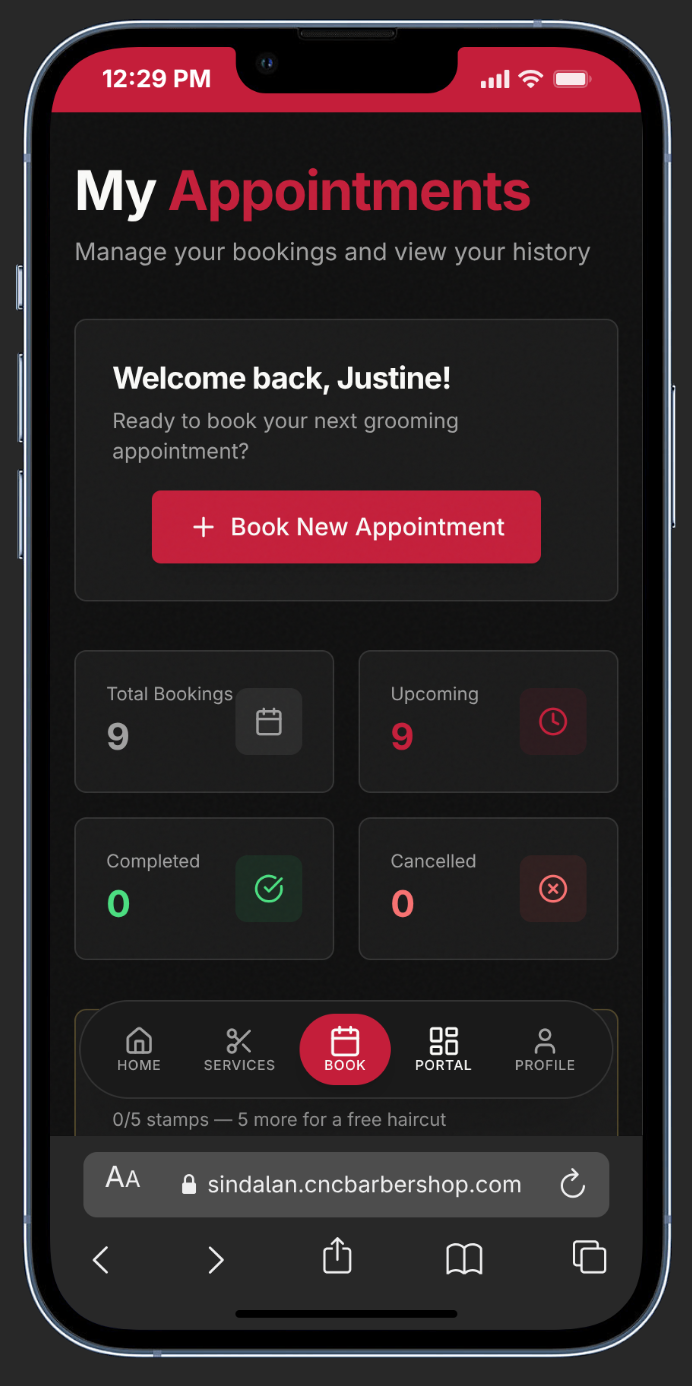
Open the Customer Portal
Click your Profile Icon → Customer Portal to see all your bookings in one place.
View Your Stats
At a glance see your Total Bookings, Upcoming, Completed, and Cancelled appointments.
Search & Filter
Use the Search bar to find appointments by service or barber. Filter by All, Upcoming, Completed, or Cancelled.
View Details & Actions
Tap View Details to see service, barber, date, time, price, and status. From here you can also Pay Deposit, Rate Visit, or Cancel.
Pay with QR Code
Tap Pay Deposit to open a PayMongo QR. Scan it with GCash or Maya. The system auto-detects your payment — no receipt upload needed.
Save Your Receipt
Tap Save Appointment inside any detail view to download your booking receipt as a PNG image.
If you have an existing active booking, a deposit is required to secure additional slots. Keep an eye on the yellow alert banner!